NotebookLM-MCP
AI Skill Hub 推荐使用:NotebookLM-MCP 是一款优质的MCP工具。已获得 4.8k 颗 GitHub Star,AI 综合评分 7.5 分,在同类工具中表现稳健。如果你正在寻找可靠的MCP工具解决方案,这是一个值得深入了解的选择。
📚 深度解析
通过安装 NotebookLM-MCP,你的 AI 助手将获得额外的工具调用能力,可以用自然语言直接操控该工具的功能,无需学习复杂的命令行语法。MCP 工具的核心价值在于"一次配置,永久增强"——配置完成后,每次与 AI 对话时都可以无缝调用这些工具。
在技术实现上,MCP 工具通过标准的 JSON-RPC 协议与 AI 客户端通信,工具的功能以"工具列表"的形式暴露给 AI 模型,AI 可以按需调用。NotebookLM-MCP 提供了结构化的工具调用接口,使 AI 模型能够精确地理解和使用每个功能点,显著降低 AI 在工具使用上的错误率。
与传统的 API 集成相比,MCP 工具的优势在于无需编写代码——用户只需在配置文件中添加几行 JSON,即可让 AI 获得全新能力。AI Skill Hub 将 NotebookLM-MCP 评为 AI 评分 7.5 分,属于同类工具中的优质选择。
📋 工具概览
命令行接口访问Google NotebookLM
NotebookLM-MCP 是一款遵循 MCP(Model Context Protocol)标准协议的 AI 工具扩展。通过 MCP 协议,它可以让 Claude、Cursor 等主流 AI 客户端直接访问和操作外部工具、数据源和服务,实现 AI 能力的无缝扩展。无论是文件操作、数据库查询还是 API 调用,都可以通过自然语言在 AI 对话中直接触发,极大提升生产效率。
📖 中文文档
命令行接口访问Google NotebookLM
NotebookLM-MCP 是一款遵循 MCP(Model Context Protocol)标准协议的 AI 工具扩展。通过 MCP 协议,它可以让 Claude、Cursor 等主流 AI 客户端直接访问和操作外部工具、数据源和服务,实现 AI 能力的无缝扩展。无论是文件操作、数据库查询还是 API 调用,都可以通过自然语言在 AI 对话中直接触发,极大提升生产效率。
- 通过标准 MCP 协议与 Claude、Cursor 等主流 AI 客户端深度集成
- 提供结构化工具调用接口,显著降低 AI 集成复杂度
- 支持 Claude Desktop 和 Claude Code 无缝接入,开箱即用
- 可与其他 MCP 工具组合叠加,构建完整 AI 工作站
- 轻量无侵入设计,不影响现有系统架构
- 在 Claude Desktop 对话中直接调用本地工具,实现 AI 与系统的深度联动
- 通过自然语言驱动复杂的多步骤自动化任务,代替繁琐手动操作
- 将多个 MCP 工具组合使用,构建个人专属 AI 工作站
# 方式一:通过 Claude Code CLI 一键安装
claude skill install https://github.com/jacob-bd/notebooklm-mcp-cli

# 方式二:手动配置 claude_desktop_config.json
{
  "mcpServers": {
    "notebooklm-mcp": {
      "command": "npx",
      "args": ["-y", "notebooklm-mcp-cli"]
    }
  }
}

# 配置文件位置
# macOS: ~/Library/Application Support/Claude/claude_desktop_config.json
# Windows: %APPDATA%/Claude/claude_desktop_config.json
- 确认已安装 Node.js(v18 或以上版本)
- 打开 Claude Desktop 或 Claude Code 的 MCP 配置文件
- 按「交给 Agent 安装 → Claude Desktop」标签中的 JSON 配置填入 mcpServers 字段
- 保存配置文件并重启 Claude 客户端
- 重启后,在对话中即可使用本工具
# 安装后在 Claude 对话中直接使用
# 示例:
用户: 请帮我用 NotebookLM-MCP 执行以下任务...
Claude: [自动调用 NotebookLM-MCP MCP 工具处理请求]

# 查看可用工具列表
# 在 Claude 中输入:"列出所有可用的 MCP 工具"
// claude_desktop_config.json 配置示例
{
  "mcpServers": {
    "notebooklm-mcp": {
      "command": "npx",
      "args": ["-y", "notebooklm-mcp-cli"],
      "env": {
        // "API_KEY": "your-api-key-here"
      }
    }
  }
}

// 保存后重启 Claude Desktop 生效
Features
| Capability | CLI Command | MCP Tool |
|---|---|---|
| List notebooks | nlm notebook list | notebook_list |
| Create notebook | nlm notebook create | notebook_create |
| Add Sources (URL, Text, Drive, File) | nlm source add | source_add |
| Query notebook (persists to web UI) | nlm notebook query | notebook_query |
| Create Studio Content (Audio, Video, etc.) | nlm studio create | studio_create |
| Revise slide decks | nlm slides revise | studio_revise |
| Download artifacts | nlm download <type> | download_artifact |
| Web/Drive research | nlm research start | research_start |
| Share notebook | nlm share public/invite | notebook_share_* |
| Sync Drive sources | nlm source sync | source_sync_drive |
| Batch operations | nlm batch query/create/delete | batch |
| Cross-notebook query | nlm cross query | cross_notebook_query |
| Pipelines (multi-step workflows) | nlm pipeline run/list | pipeline |
| Tag & smart select | nlm tag add/list/select | tag |
| Configure AI tools | nlm setup add/remove/list | — |
| Install AI Skills | nlm skill install/update | — |
| Diagnose issues | nlm doctor | — |
📚 More Documentation: - Getting Started — Install, login, agent setup, and migration from another NotebookLM MCP - CLI Guide — Complete command reference - MCP Guide — All 35 MCP tools with examples - Authentication — Setup and troubleshooting - API Reference — Internal API docs for contributors
Automatic setup — picks the right config for each tool
nlm setup add claude-code nlm setup add gemini nlm setup add github-copilot nlm setup add cursor nlm setup add cline nlm setup add antigravity
Installation
🆕 Claude Desktop users: Download the extension (.mcpb file) → double-click → done! One-click install, no config needed.
Install from PyPI. This single package includes both the CLI and MCP server:
Using uvx (Run Without Install)
uvx --from notebooklm-mcp-cli nlm --help
uvx --from notebooklm-mcp-cli notebooklm-mcp
Install with uv
uv tool install . ``` </details>
Step 1: Check What You Have Installed
uv tool list | grep notebooklmLegacy packages to remove: <div class="rdm-tbl-wrap"><table class="rdm-tbl"><thead><tr><th>Package</th><th>What it was</th></tr></thead><tbody><tr><td>notebooklm-cli</td><td>Old CLI-only package</td></tr><tr><td>notebooklm-mcp-server</td><td>Old MCP-only package</td></tr></tbody></table></div>
Step 2: Uninstall Legacy Packages
```bash
Remove old CLI package (if installed)
uv tool uninstall notebooklm-cli
Remove old MCP package (if installed)
uv tool uninstall notebooklm-mcp-server ```
Step 3: Reinstall the Unified Package
After removing legacy packages, reinstall to fix symlinks:
uv tool install --force notebooklm-mcp-cliWhy--force? When multiple packages provide the same executable,uvcan leave broken symlinks after uninstalling. The--forceflag ensures clean symlinks.
Step 4: Verify Installation
uv tool list | grep notebooklmYou should see only:
notebooklm-mcp-cli v0.2.0
- nlm
- notebooklm-mcp
Getting Started
If you are setting up the tool for the first time — or migrating from a browser-based NotebookLM MCP — see the Getting Started Guide. It covers install, login, agent registration, and a step-by-step migration path that avoids the "two NotebookLM servers registered" trap.
Uninstalling
To completely remove the MCP:
```bash
Automatic Setup (Recommended)
Use nlm setup to automatically configure the MCP server for your AI tools — no manual JSON editing required:
```bash
Diagnose installation & auth issues
nlm doctor ```
Install AI Skills (Optional)
Install the NotebookLM expert guide for your AI assistant to help it use the tools effectively. Supported for Cline, Antigravity, OpenClaw, Codex, OpenCode, Claude Code, and Gemini CLI.
```bash
Install skill files
nlm skill install cline nlm skill install openclaw nlm skill install codex nlm skill install antigravity
Using uvx (No Install Required)
If you don't want to install the package, you can use uvx to run on-the-fly:
```bash
`uv tool upgrade` Not Installing Latest Version
Symptoms: - Running uv tool upgrade notebooklm-mcp-cli installs an older version (e.g., 0.1.5 instead of 0.1.9) - uv cache clean doesn't fix the issue
Why this happens: uv tool upgrade respects version constraints from your original installation. If you initially installed an older version or with a constraint, upgrade stays within those bounds by design.
Fix — Force reinstall:
uv tool install --force notebooklm-mcp-cliThis bypasses any cached constraints and installs the absolute latest version from PyPI.
Verify: ```bash uv tool list | grep notebooklm
MCP Demos
| **General Overview** | **Claude Desktop** | **Perplexity Desktop** | **MCP Super Assistant** |
|---|---|---|---|
| [](https://www.youtube.com/watch?v=d-PZDQlO4m4) | [](https://www.youtube.com/watch?v=PU8JhgLPxes) | [](https://www.youtube.com/watch?v=BCKlDNg-qxs) | [](https://www.youtube.com/watch?v=7aHDbkr-l_E) |
Generate JSON config for any other tool
nlm setup add json ```
Then use natural language: "Create a notebook about quantum computing and generate a podcast"
Remove cached auth tokens and data (optional)
rm -rf ~/.notebooklm-mcp-cli
Also remove from your AI tools:
... or any configured tool
```
MCP Configuration
⚠️ Context Window Warning: This MCP provides 35 tools. Disable it when not using NotebookLM to preserve context. In Claude Code: @notebooklm-mcp to toggle.
Generate JSON config for any other tool
nlm setup add json
Check which tools are configured
nlm setup list
NotebookLM CLI & MCP Server






🎉 January 2026 — Major Update! This project has been completely refactored to unify NotebookLM-MCP and NotebookLM-CLI into a single, powerful package. One install gives you both the CLI (nlm) and MCP server (notebooklm-mcp). See the CLI Guide and MCP Guide for full documentation.
Programmatic access to Google NotebookLM — via command-line interface (CLI) or Model Context Protocol (MCP) server.
Note: Tested with Pro/free and Google AI Ultra ($249/mo) tier accounts. May work with NotebookLM Enterprise accounts but has not been tested.
📺 Watch the Demos
CLI Demos
| **CLI Overview** | **CLI, MCP & Skills** | **Setup, Doctor & mcpb** | **Infographics Support** |
|---|---|---|---|
| [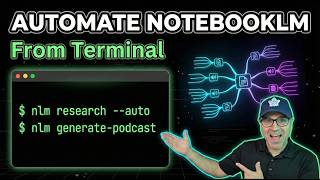](https://www.youtube.com/watch?v=XyXVuALWZkE) | [](https://www.youtube.com/watch?v=ZQBQigFK-E8) | [](https://www.youtube.com/watch?v=5tOUilBTJ3Q) | [](https://www.youtube.com/watch?v=Uc6iH5NuQ9A) |
🖥️ Command-Line Interface (CLI)
Use nlm directly in your terminal for scripting, automation, or interactive use:
nlm notebook list                              # List all notebooks
nlm notebook create "Research Project"         # Create a notebook
nlm source add <notebook> --url "https://..."  # Add sources
nlm audio create <notebook> --confirm          # Generate podcast
nlm download audio <notebook> <artifact-id>    # Download audio file
nlm share public <notebook>                    # Enable public link
Run nlm --ai for comprehensive AI-assistant documentation.
CLI Authentication (Recommended)
```bash
Run CLI commands directly
uvx --from notebooklm-mcp-cli nlm setup add cursor uvx --from notebooklm-mcp-cli nlm login
For tools that use JSON config, point them to uvx:
<details>
<summary>Manual Setup (if you prefer)</summary>

> **Tip:** Run `nlm setup add json` for an interactive wizard that generates the right JSON snippet for your tool.

**Claude Code / Gemini CLI** support adding MCP servers via their own CLI:
**Cursor / Windsurf** resolve commands from your `PATH`, so the command name is enough:
| Tool | Config Location |
|------|-----------------|
| Cursor | `~/.cursor/mcp.json` |
| Windsurf | `~/.codeium/windsurf/mcp_config.json` |

**GitHub Copilot (VS Code workspace)** uses `.vscode/mcp.json` with a top-level `servers` key:
**Claude Desktop** may not resolve `PATH` — use the full path to the binary:Find your path with: which notebooklm-mcp
| Tool | Config Location |
|---|---|
| Claude Desktop | ~/Library/Application Support/Claude/claude_desktop_config.json |
| GitHub Copilot | .vscode/mcp.json |
</details>
📚 Full configuration details: MCP Guide — Server options, environment variables, HTTP transport, multi-user setup, and context window management.
Should show: notebooklm-mcp-cli v0.1.9 (or latest)
```
Troubleshooting
⚡ 核心功能
- 通过标准 MCP 协议与 Claude、Cursor 等主流 AI 客户端深度集成
- 提供结构化工具调用接口,显著降低 AI 集成复杂度
- 支持 Claude Desktop 和 Claude Code 无缝接入,开箱即用
- 可与其他 MCP 工具组合叠加,构建完整 AI 工作站
- 轻量无侵入设计,不影响现有系统架构
👥 适合人群
🎯 使用场景
- 在 Claude Desktop 对话中直接调用本地工具,实现 AI 与系统的深度联动
- 通过自然语言驱动复杂的多步骤自动化任务,代替繁琐手动操作
- 将多个 MCP 工具组合使用,构建个人专属 AI 工作站
⚖️ 优点与不足
- +MIT 协议,可免费商用
- +标准化 MCP 协议,生态互联性强
- +与 Claude 官方生态无缝对接
- +即插即用,配置简单快捷
- −依赖 Claude 客户端,非 Claude 用户无法使用
- −MCP 协议仍在持续演进,接口可能变更
- −需要一定的配置步骤
AI Skill Hub 为第三方内容聚合平台,本页面信息基于公开数据整理,不对工具功能和质量作任何法律背书。
建议在沙箱或测试环境中充分验证后,再部署至生产环境,并做好必要的安全评估。
✅ MIT 协议 — 最宽松的开源协议之一,可自由商用、修改、分发,仅需保留版权声明。
❓ 常见问题 FAQ
总体来看,NotebookLM-MCP 是一款质量良好的MCP工具,在同类工具中具备一定竞争力。AI Skill Hub 将持续追踪其更新动态,建议收藏备用,结合自身场景选择合适时机引入使用。
| 原始名称 | notebooklm-mcp-cli |
| 原始描述 | 开源MCP工具:Programmatic access to Google NotebookLM — via command-line interface (CLI), Mod。⭐4.8k · Python |
| Topics | mcppythoncli |
| GitHub | https://github.com/jacob-bd/notebooklm-mcp-cli |
| License | MIT |
| 语言 | Python |
收录时间:2026-06-08 · 更新时间:2026-06-08 · License:MIT · AI Skill Hub 不对第三方内容的准确性作法律背书。