Alpha Vantage MCP
经 AI Skill Hub 精选评估,Alpha Vantage MCP 获评「推荐使用」。这款MCP工具在功能完整性、社区活跃度和易用性方面表现出色,AI 评分 7.5 分,适合有一定技术背景的用户使用。
📚 深度解析
通过安装 Alpha Vantage MCP,你的 AI 助手将获得额外的工具调用能力,可以用自然语言直接操控该工具的功能,无需学习复杂的命令行语法。MCP 工具的核心价值在于"一次配置,永久增强"——配置完成后,每次与 AI 对话时都可以无缝调用这些工具。
在技术实现上,MCP 工具通过标准的 JSON-RPC 协议与 AI 客户端通信,工具的功能以"工具列表"的形式暴露给 AI 模型,AI 可以按需调用。Alpha Vantage MCP 提供了结构化的工具调用接口,使 AI 模型能够精确地理解和使用每个功能点,显著降低 AI 在工具使用上的错误率。
与传统的 API 集成相比,MCP 工具的优势在于无需编写代码——用户只需在配置文件中添加几行 JSON,即可让 AI 获得全新能力。AI Skill Hub 将 Alpha Vantage MCP 评为 AI 评分 7.5 分,属于同类工具中的优质选择。
📋 工具概览
Alpha Vantage MCP 是一款遵循 MCP(Model Context Protocol)标准协议的 AI 工具扩展。通过 MCP 协议,它可以让 Claude、Cursor 等主流 AI 客户端直接访问和操作外部工具、数据源和服务,实现 AI 能力的无缝扩展。无论是文件操作、数据库查询还是 API 调用,都可以通过自然语言在 AI 对话中直接触发,极大提升生产效率。
📖 中文文档
Alpha Vantage MCP 是一款遵循 MCP(Model Context Protocol)标准协议的 AI 工具扩展。通过 MCP 协议,它可以让 Claude、Cursor 等主流 AI 客户端直接访问和操作外部工具、数据源和服务,实现 AI 能力的无缝扩展。无论是文件操作、数据库查询还是 API 调用,都可以通过自然语言在 AI 对话中直接触发,极大提升生产效率。
- 通过标准 MCP 协议与 Claude、Cursor 等主流 AI 客户端深度集成
- 提供结构化工具调用接口,显著降低 AI 集成复杂度
- 支持 Claude Desktop 和 Claude Code 无缝接入,开箱即用
- 可与其他 MCP 工具组合叠加,构建完整 AI 工作站
- 轻量无侵入设计,不影响现有系统架构
- 在 Claude Desktop 对话中直接调用本地工具,实现 AI 与系统的深度联动
- 通过自然语言驱动复杂的多步骤自动化任务,代替繁琐手动操作
- 将多个 MCP 工具组合使用,构建个人专属 AI 工作站
# 方式一:通过 Claude Code CLI 一键安装
claude skill install https://github.com/alphavantage/alpha_vantage_mcp

# 方式二:手动配置 claude_desktop_config.json
{
  "mcpServers": {
    "alpha-vantage-mcp": {
      "command": "npx",
      "args": ["-y", "alpha_vantage_mcp"]
    }
  }
}

# 配置文件位置
# macOS: ~/Library/Application Support/Claude/claude_desktop_config.json
# Windows: %APPDATA%/Claude/claude_desktop_config.json
- 确认已安装 Node.js(v18 或以上版本)
- 打开 Claude Desktop 或 Claude Code 的 MCP 配置文件
- 按「交给 Agent 安装 → Claude Desktop」标签中的 JSON 配置填入 mcpServers 字段
- 保存配置文件并重启 Claude 客户端
- 重启后,在对话中即可使用本工具
# 安装后在 Claude 对话中直接使用
# 示例:
用户: 请帮我用 Alpha Vantage MCP 执行以下任务...
Claude: [自动调用 Alpha Vantage MCP MCP 工具处理请求]

# 查看可用工具列表
# 在 Claude 中输入:"列出所有可用的 MCP 工具"
// claude_desktop_config.json 配置示例
{
  "mcpServers": {
    "alpha_vantage_mcp": {
      "command": "npx",
      "args": ["-y", "alpha_vantage_mcp"],
      "env": {
        // "API_KEY": "your-api-key-here"
      }
    }
  }
}

// 保存后重启 Claude Desktop 生效
Alpha Vantage MCP Server
The official Alpha Vantage API MCP server enables LLMs and agentic workflows to seamlessly interact with real-time and historical stock market data through the Model Context Protocol (MCP). Add this server to your favorite apps such as Claude, Claude Code, Cursor, VS Code, and many more to give them access to comprehensive financial data.
---
Setup Instructions by Use Case
💬📊 Power your chatbot with financial data
<details> <summary><b>Install in Claude</b></summary>
Requirements: - Claude Pro account (or higher tier) #### Claude Remote Server Connection
To connect Claude (Web or Desktop) to this MCP server:
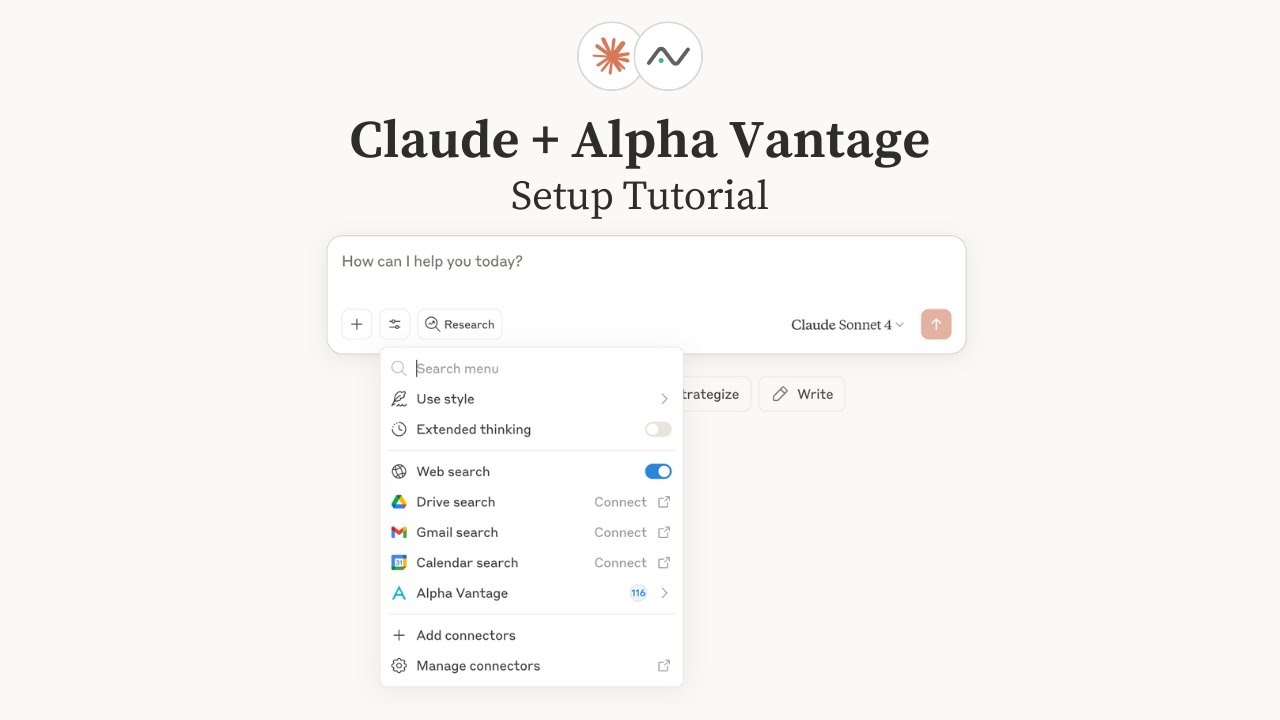
📺 Watch the setup tutorial - Click the image below to watch a step-by-step video guide:
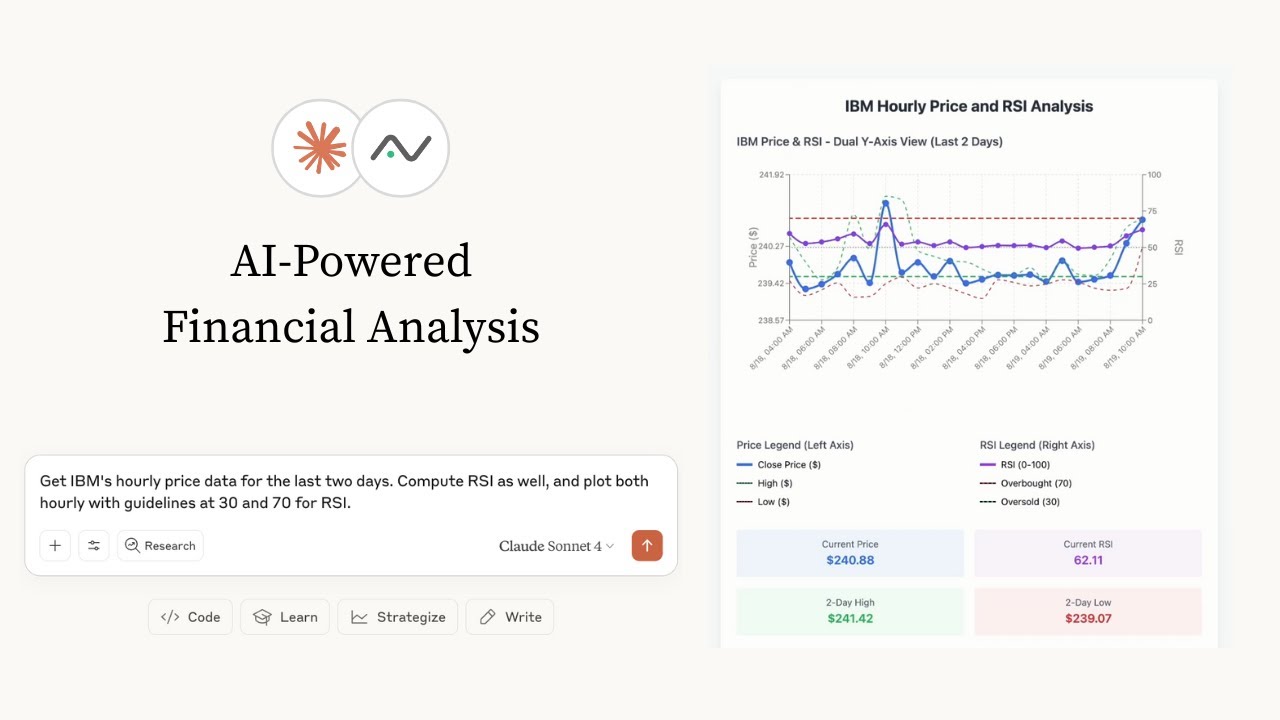
📺 Already have your Alpha Vantage MCP server set up? Below are a few examples of Claude performing various stock analysis & charting tasks:
Query Param Option (Recommended): 1. Go to claude.ai/settings/connectors (Web) or Settings → Connectors (Desktop) 2. Click "Add Custom Connector" 3. Add the MCP server URL with your API key: https://mcp.alphavantage.co/mcp?apikey=YOUR_API_KEY (replace YOUR_API_KEY with your actual Alpha Vantage API key) 4. Click "Connect"
OAuth Option: 1. Go to claude.ai/settings/connectors (Web) or Settings → Connectors (Desktop) 2. Click "Add Custom Connector" 3. Add the MCP server URL: https://mcp.alphavantage.co/mcp 4. Click "Connect" 5. Enter your Alpha Vantage API token 6. Click "Authorize Access"
#### Claude Local Server Connection See Claude Desktop MCP docs for more info.
Install uv (a modern Python package and project manager):
curl -LsSf https://astral.sh/uv/install.sh | shOpen Claude Desktop developer settings and edit your claude_desktop_config.json file to add the following configuration:
{
  "mcpServers": {
    "alphavantage": {
      "command": "uvx",
      "args": ["marketdata-mcp-server", "YOUR_API_KEY"]
    }
  }
}
Replace YOUR_API_KEY with your actual Alpha Vantage API key.
</details>
<details> <summary><b>Install in ChatGPT</b></summary>
Requirements: - ChatGPT Plus account (or higher tier) - Developer mode enabled (beta feature) - see OpenAI's Developer Mode documentation
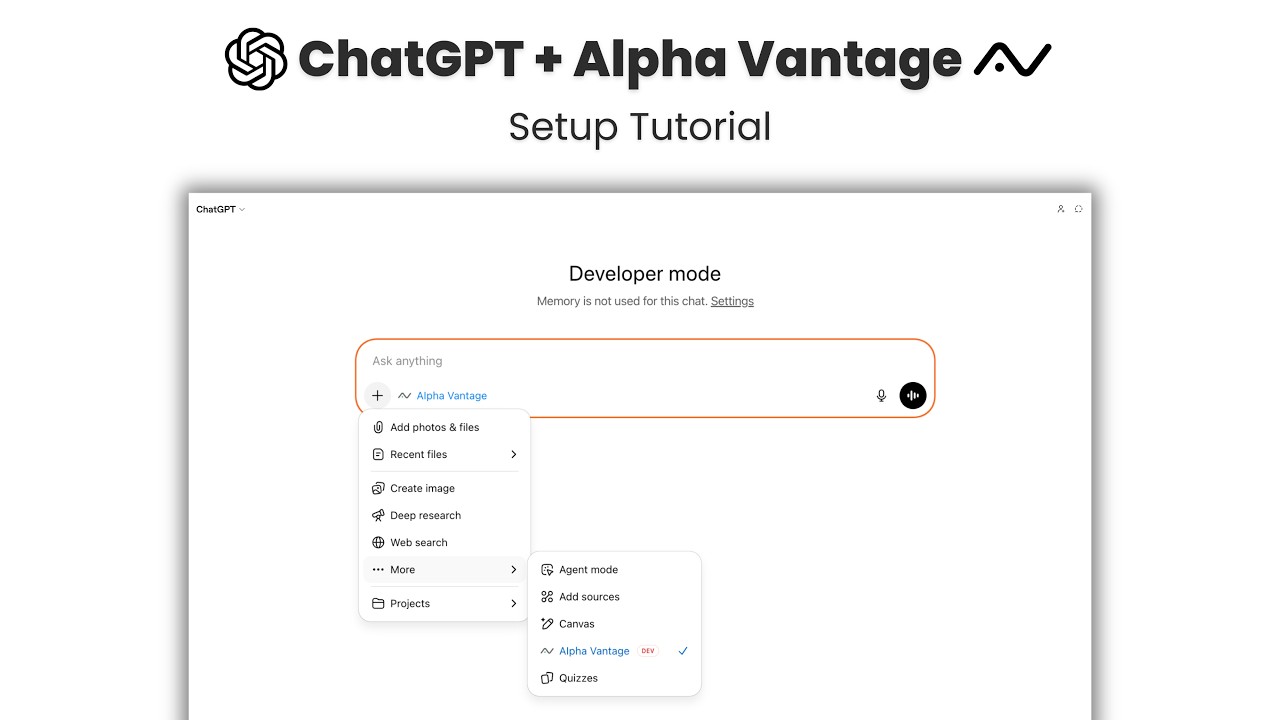
📺 Watch the setup tutorial - Click the image below to watch a step-by-step video guide:
📺 Already have your Alpha Vantage MCP server set up? Below are a few examples of ChatGPT performing various stock analysis & charting tasks:
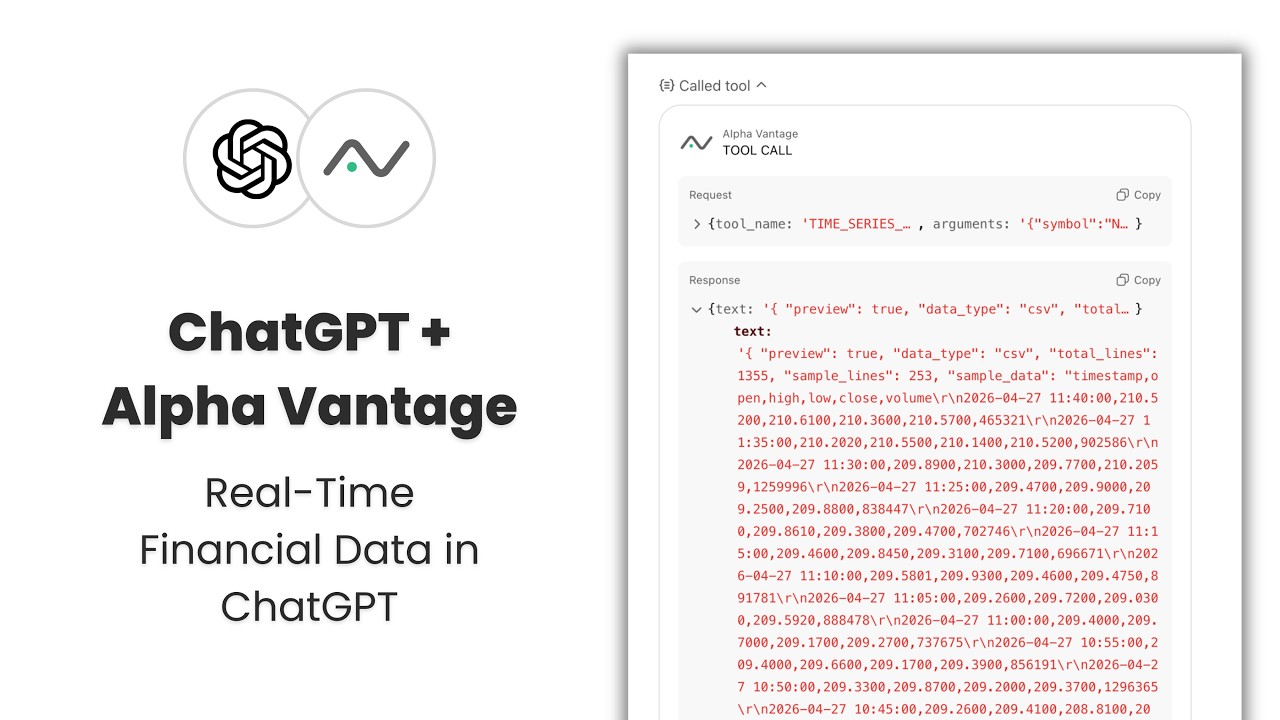
Setup: 1. Go to ChatGPT Settings → Apps 2. Click on Advanced settings → enable Developer mode 3. Return to the Apps submenu, then click Create app. 4. MCP Server URL: https://mcp.alphavantage.co/mcp?apikey=YOUR_API_KEY (replace YOUR_API_KEY with your actual Alpha Vantage API key). 5. Authentication: No authentication
Note: When you return to your conversation, your UI will clearly indicate that you are in Developer mode. ChatGPT will retain memory of any previous remarks made within the same chat session; however, these sessions may not be persisted, meaning the conversation generated while Developer mode is active may not be saved or accessible once closed.
Troubleshooting for ChatGPT Plus Accounts
While Developer mode is available for both Plus and Pro accounts, on Plus accounts, first-time MCP tool execution may exhibit inconsistent behavior. This primarily affects large data payloads returned from the MCP server. If you notice that MCP calls abruptly terminate without returning any JSON response, try the following:
1. Confirm Connection - Confirm the connection by prompting:
List 3 functions available in Alpha Vantage MCP server.
TIME_SERIES_DAILY and TIME_SERIES_INTRADAY.
2. Force JSON Passthrough with simple payload - Use the following prompts in sequence to prime ChatGPT to surface the full payload:
Run ADD_TWO_NUMBERS from Alpha Vantage MCP Server using 3 and 6, and then show the JSON response.
Thinking make it Skip, so that it doesn't try the call again and instead outputs its conversational response. Why aren't you receiving a JSON response?
Explicitly request a return value from the tool response to verify what the server outputs.
3. Force JSON Passthrough with large payload - Once step #2 has been successful, repeat step #2 with the larger call:
Run TIME_SERIES_DAILY using NVDA, and then show the JSON response.
<details> <summary><b>Install in Grok</b></summary>
Requirements: - SuperGrok (or higher tier)
Setup: 1. Click the + button → Connectors → Add connector → Custom 2. Name: Alpha Vantage MCP Server (or whatever you prefer) 3. Server URL: https://mcp.alphavantage.co/mcp?apikey=YOUR_API_KEY (replace YOUR_API_KEY with your actual Alpha Vantage API key). 4. Click Add Connector </details>
🤖📈 Create agentic workflows for quantitative investing
<details> <summary><b>Install in 🦞OpenClaw🦞</b></summary>
Requirements: - Mac with Apple Silicon (or dedicated Mac mini) - LLM API Key (OpenAI used in demo) - Messaging Platform Bot Token (Telegram used in demo)
📺 Watch the setup tutorial (click image below)

- View the detailed installation guide from GitHub Gist
- For additional support links, please check the video description on YouTube.
</details>
<details> <summary><b>Configure in OpenAI Agent Builder</b></summary>
Requirements: - OpenAI account with access to Agent Builder (e.g., billing details added, organization verified)
📺 Watch the setup tutorial. (Click image below.)

OpenAI Agent Builder Connection
To connect OpenAI Agent Builder to this MCP server:
1. Do not add a separate MCP Server object. Instead, click on your agent in OpenAI Agent Builder to add the MCP Server directly to the agent. 2. Find the Tools section of the agent and click the + button to add a new tool 3. Select MCP Server 4. Click "+ Server" in the upper right of the "Add MCP server" menu 5. Configure the MCP server with the following settings: - URL: https://mcp.alphavantage.co/mcp - Label: Alpha Vantage MCP Server (or any name you prefer) - Description: Financial market data and technical indicators (or any description you prefer) - Authentication: Select "Access token / API key" (should be default) - Access Token: Enter your Alpha Vantage API key 6. Click Connect 7. If successful, the next prompt will display all the tools. Scroll to the bottom and click Add.
Recommended Agent Instructions:
Add the following instruction to your agent's configuration to optimize performance:
You are a helpful financial agent with access to market data through Alpha Vantage MCP Server.

IMPORTANT: Alpha Vantage functions are accessed via wrapper tools:
- Use TOOL_LIST to see available functions (TIME_SERIES_DAILY, RSI, COMPANY_OVERVIEW, etc.)
- Use TOOL_CALL with the format: TOOL_CALL(tool_name="FUNCTION_NAME", arguments={...})
- Example: TOOL_CALL(tool_name="TIME_SERIES_DAILY", arguments={"symbol": "AAPL", "outputsize": "compact"})<details> <summary><b>Install in OpenAI Agents SDK</b></summary>
To use the Alpha Vantage MCP server with OpenAI Agents SDK, see our example agent that demonstrates:
- Interactive financial analysis agent
- Session management for conversation continuity
- Real-time tool execution with Alpha Vantage data
- Support for both HTTP and stdio MCP connections
The example includes a complete setup guide and configuration templates.
</details>
<details> <summary><b>Configure in Microsoft Foundry Agent Service</b></summary>
Requirements: - Azure subscription with access to Azure AI Foundry
Microsoft Foundry Agent Service Connection
To connect a Foundry agent to this MCP server:
1. Open your agent (or Create Agent from Home Dashboard) in Azure AI Foundry's Agent playground or Agent designer. 2. In the Tools section of the agent configuration, click Add → Browse All Tools. Select the Custom category underneath "Select a Tool" and select Model Context Protocol 3. Configure the MCP server with the following settings: - Unauthenticated (recommended): - Server label: alpha-vantage-mcp-server (or any name you prefer) - Server URL: https://mcp.alphavantage.co/mcp?apikey=YOUR_API_KEY - Replace YOUR_API_KEY with your actual Alpha Vantage API key. - Authentication: Select Unauthenticated - Key-based authentication (alternative): - Server label: alpha-vantage-mcp-server (or any name you prefer) - Server URL: https://mcp.alphavantage.co/mcp - Authentication: Select Key-based authentication - Credential - Click "Add key value pair" - Key: apikey - Value: Enter your Alpha Vantage API key 4. Click Connect
Recommended Agent Instructions:
Add the following instruction to your agent's system prompt to optimize performance:
You are a helpful financial agent with access to market data through Alpha Vantage MCP Server.
IMPORTANT: Alpha Vantage functions are accessed via wrapper tools:

Use TOOL_LIST to see available functions (TIME_SERIES_DAILY, RSI, COMPANY_OVERVIEW, etc.)
Use TOOL_GET to retrieve the schema for a specific function before calling it
Use TOOL_CALL with the format: TOOL_CALL(tool_name="FUNCTION_NAME", arguments={...})
Example: TOOL_CALL(tool_name="TIME_SERIES_DAILY", arguments={"symbol": "IBM", "outputsize": "compact"})

Always use Alpha Vantage MCP Server for market data queries. Do not answer from prior knowledge or web search.
💻💵 Code up fintech apps
<details> <summary><b>Install in OpenAI Codex</b></summary>
Requirements: - ChatGPT Plus account (or higher tier)
See OpenAI Codex for more information.
📺 Watch the setup tutorial. (Click image below.) This video additionally provides guidance on handling setup errors and building complete end-to-end applications which are empowered to fetch market data to power dynamic, data-driven visualizations.

- Download the companion .md file from Github Gist.
- For additional support links, please check the video description on YouTube.
Install uv (a modern Python package and project manager):
curl -LsSf https://astral.sh/uv/install.sh | shInstall Codex CLI v0.34 or later to avoid compatibility issues.
```bash
Install (if not already installed)
npm install -g @openai/codex
Verify installation and version
codex --version
Add the following configuration to your Codex MCP server settings by editing `~/.codex/config.toml`:
Replace `YOUR_API_KEY` with your actual Alpha Vantage API key.

Run `codex` in your terminal from your project directory. First-time users will be guided through additional prompts.

Then connect with:
</details>

<details>
<summary><b>Install in Claude Code</b></summary>

  **Requirements:**
- Claude Pro account (or higher tier)

See [Claude Code MCP docs](https://docs.anthropic.com/en/docs/claude-code/mcp) for more information.

Run one of the following commands, depending on whether you’re connecting remotely or running the server locally.

#### Claude Code Remote Server Connection
Replace `YOUR_API_KEY` with your actual Alpha Vantage API key.

#### Claude Code Local Server Connection

First, install `uv` (a [modern Python package](https://docs.astral.sh/uv/) and project manager):
Then run:
Replace `YOUR_API_KEY` with your actual Alpha Vantage API key.

Run `claude` in your terminal from your project directory.

Then connect with:
</details>


<details>
<summary><b>Install in VS Code (Visual Studio Code)</b></summary>

See [VS Code MCP docs](https://code.visualstudio.com/docs/copilot/chat/mcp-servers) for more info.

Create `.vscode/mcp.json` (your VS Code MCP config file) in your workspace, and paste into it one of the following configurations, depending on whether you’re connecting remotely or running the server locally.

#### VS Code Remote Server Connection

Paste the following into `.vscode/mcp.json`:
Replace `YOUR_API_KEY` with your actual Alpha Vantage API key.

#### VS Code Local Server Connection

First, install `uv` (a [modern Python package](https://docs.astral.sh/uv/) and project manager):
Then, paste the following into `.vscode/mcp.json`:
Replace `YOUR_API_KEY` with your actual Alpha Vantage API key.

Open the Chat view and select Agent mode

</details>

<details>

<summary><b>Install in Continue (Extension for VS Code, JetBrains)</b></summary>

See [Continue MCP docs](https://docs.continue.dev/customize/deep-dives/mcp) for more information. Continue uses its own configuration format (not VS Code's mcp.json).

Create `.continue/mcpServers/alphavantage.yaml` in your workspace, and paste into it one of the following configurations, depending on whether you’re connecting remotely or running the server locally. (Recommended: Remote)

#### Continue Remote Server Connection

Paste the following into `.continue/mcpServers/alphavantage.yaml`:
Replace `YOUR_API_KEY` with your actual Alpha Vantage API key.

#### Continue Local Server Connection

First, install `uv` (a [modern Python package](https://docs.astral.sh/uv/) and project manager):
Then, paste the following into `.continue/mcpServers/alphavantage.yaml`:
Replace `YOUR_API_KEY` with your actual Alpha Vantage API key.

Open the Continue panel and select Agent mode. Set up your LLM provider.
</details>

<details>
<summary><b>Install in Cursor</b></summary>

See [Cursor MCP docs](https://docs.cursor.com/context/model-context-protocol) for more information.

Paste one of the following configurations into your Cursor `~/.cursor/mcp.json` file, depending on whether you’re connecting remotely or running the server locally. You may also install in a specific project by creating `.cursor/mcp.json` in your project folder.

#### Cursor Remote Server Connection

Configure Cursor by editing `~/.cursor/mcp.json`:
Replace `YOUR_API_KEY` with your actual Alpha Vantage API key.

#### Cursor Local Server Connection

First, install `uv` (a [modern Python package](https://docs.astral.sh/uv/) and project manager):
Then, paste the following into your Cursor `~/.cursor/mcp.json` file:
Replace `YOUR_API_KEY` with your actual Alpha Vantage API key.

</details>


<details>
<summary><b>Install in Gemini CLI</b></summary>

See [Gemini CLI Configuration](https://google-gemini.github.io/gemini-cli/docs/tools/mcp-server.html) for more information.

Run one of the following commands, depending on whether you’re connecting remotely or running the server locally.

**Gemini CLI Remote Server Connection (Recommended):**
Replace `YOUR_API_KEY` with your actual Alpha Vantage API key.

**Gemini CLI Local Server Connection:**

Install `uv` (a [modern Python package](https://docs.astral.sh/uv/) and project manager):
Then run:
Replace `YOUR_API_KEY` with your actual Alpha Vantage API key.

**Manual Configuration:**
1. Open the Gemini CLI settings file. The location is `~/.gemini/settings.json` (where `~` is your home directory).
2. Add the following to the `mcpServers` object in your `settings.json` file (replace `YOUR_API_KEY` with your actual Alpha Vantage API key):
Or, for a local server (replace `YOUR_API_KEY` with your actual Alpha Vantage API key):
If the mcpServers object does not exist, create it.
</details>
💡💡 I'm just exploring
Just exploring what to build? Check out the Trading Agents stock research tool (#1 trending on Github), which is powered by Alpha Vantage market data with no setup required.
Quickstart
To use the server, <a href="https://www.alphavantage.co/support/#api-key" onclick="gtag('event', 'mcp_getKey')">get your free Alpha Vantage API key</a>, copy it to your clipboard, then follow the instructions below for the agentic tool/platform of your interest.
⚡ We use an optimization technique called Progressive Tool Discovery to minimize the number of tokens consumed (hence the cost incurred) while preserving the superb response quality when the MCP server is invoked. You can learn more about this technique here
⭐ View MCP source code on Github
👉 Any questions? Please contact support@alphavantage.co
Connection Examples
Remote Server Connection:
https://mcp.alphavantage.co/mcp?apikey=YOUR_API_KEYLocal Server Connection:
uvx marketdata-mcp-server YOUR_API_KEY
Examples
Below are four example prompts and Claude's expected responses when using the MCP server.
OPTIONS_DATA_APIS
| Category | Tool | Description |
|---|---|---|
| options_data_apis | REALTIME_OPTIONS | Realtime US options data with Greeks |
| options_data_apis | REALTIME_OPTIONS_FMV | Realtime US options FMV (fair market value) mark prices |
| options_data_apis | HISTORICAL_OPTIONS | Historical options chain for 15+ years |
Tools Reference
Note: The tools listed below are accessed through the MCP server's TOOL_CALL wrapper function.
| Category | Tools |
|---|---|
| core_stock_apis | TIME_SERIES_INTRADAY, TIME_SERIES_DAILY, TIME_SERIES_DAILY_ADJUSTED, TIME_SERIES_WEEKLY, TIME_SERIES_WEEKLY_ADJUSTED, TIME_SERIES_MONTHLY, TIME_SERIES_MONTHLY_ADJUSTED, GLOBAL_QUOTE, REALTIME_BULK_QUOTES, SYMBOL_SEARCH, MARKET_STATUS |
| options_data_apis | REALTIME_OPTIONS, REALTIME_OPTIONS_FMV, HISTORICAL_OPTIONS |
| alpha_intelligence | NEWS_SENTIMENT, EARNINGS_CALL_TRANSCRIPT, TOP_GAINERS_LOSERS, INSIDER_TRANSACTIONS, INSTITUTIONAL_HOLDINGS, ANALYTICS_FIXED_WINDOW, ANALYTICS_SLIDING_WINDOW |
| fundamental_data | COMPANY_OVERVIEW, INCOME_STATEMENT, BALANCE_SHEET, CASH_FLOW, EARNINGS, LISTING_STATUS, EARNINGS_CALENDAR, IPO_CALENDAR |
| forex | FX_INTRADAY, FX_DAILY, FX_WEEKLY, FX_MONTHLY |
| cryptocurrencies | CURRENCY_EXCHANGE_RATE, DIGITAL_CURRENCY_INTRADAY, DIGITAL_CURRENCY_DAILY, DIGITAL_CURRENCY_WEEKLY, DIGITAL_CURRENCY_MONTHLY |
| commodities | WTI, BRENT, NATURAL_GAS, COPPER, ALUMINUM, WHEAT, CORN, COTTON, SUGAR, COFFEE, GOLD_SILVER_SPOT, GOLD_SILVER_HISTORY, ALL_COMMODITIES |
| economic_indicators | REAL_GDP, REAL_GDP_PER_CAPITA, TREASURY_YIELD, FEDERAL_FUNDS_RATE, CPI, INFLATION, RETAIL_SALES, DURABLES, UNEMPLOYMENT, NONFARM_PAYROLL |
| technical_indicators | SMA, EMA, WMA, DEMA, TEMA, TRIMA, KAMA, MAMA, VWAP, T3, MACD, MACDEXT, STOCH, STOCHF, RSI, STOCHRSI, WILLR, ADX, ADXR, APO, PPO, MOM, BOP, CCI, CMO, ROC, ROCR, AROON, AROONOSC, MFI, TRIX, ULTOSC, DX, MINUS_DI, PLUS_DI, MINUS_DM, PLUS_DM, BBANDS, MIDPOINT, MIDPRICE, SAR, TRANGE, ATR, NATR, AD, ADOSC, OBV, HT_TRENDLINE, HT_SINE, HT_TRENDMODE, HT_DCPERIOD, HT_DCPHASE, HT_PHASOR |
| ping | PING, ADD_TWO_NUMBERS |
CORE_STOCK_APIS
| Category | Tool | Description |
|---|---|---|
| core_stock_apis | TIME_SERIES_INTRADAY | Current and 20+ years of historical intraday OHLCV data |
| core_stock_apis | TIME_SERIES_DAILY | Daily time series (OHLCV) covering 20+ years |
| core_stock_apis | TIME_SERIES_DAILY_ADJUSTED | Daily adjusted OHLCV with split/dividend events |
| core_stock_apis | TIME_SERIES_WEEKLY | Weekly time series (last trading day of week) |
| core_stock_apis | TIME_SERIES_WEEKLY_ADJUSTED | Weekly adjusted time series with dividends |
| core_stock_apis | TIME_SERIES_MONTHLY | Monthly time series (last trading day of month) |
| core_stock_apis | TIME_SERIES_MONTHLY_ADJUSTED | Monthly adjusted time series with dividends |
| core_stock_apis | GLOBAL_QUOTE | Latest price and volume for a ticker |
| core_stock_apis | REALTIME_BULK_QUOTES | Realtime quotes for up to 100 symbols |
| core_stock_apis | SYMBOL_SEARCH | Search for symbols by keywords |
| core_stock_apis | MARKET_STATUS | Current market status worldwide |
4. Compare performance across asset classes
Prompt: “Compare gold, silver, and Bitcoin performance over the past 5 years”
Expected Behavior: - Claude will use progressive discovery to find and invoke the correct tools, in this case the TIME_SERIES_MONTHLY function and the DIGITAL_CURRENCY_MONTHLY function. - Claude will make three separate requests, one to the TIME_SERIES_INTRADAY function using the GLD symbol, one to the TIME_SERIES_INTRADAY function using the SLV symbol, and one to the DIGITAL_CURRENCY_MONTHLY function using the BTC symbol. Claude will receive the relevant responses. - Claude will do any necessary calculations on top of the returned data, and create an HTML artifact:
<img width="770" height="756" alt="Commodity_price" src="https://github.com/user-attachments/assets/953c5bcb-1b30-4880-a78b-7bc2ae3a8a70" />
高质量的开源MCP工具,值得关注
- 需要让 Claude / Cursor 操作本地工具的 AI 工程师
- 配置 MCP 服务器时建议使用 stdio 传输 + JSON-RPC,避免暴露公网
- API key 直接提交到 git 仓库(请用 .env 并加入 .gitignore)
- MCP 配置路径拼错或权限不足,重启 Claude Desktop 才生效
- Python 依赖冲突:建议用 venv / uv 隔离环境
- 云端托管:可放在 Vercel / Railway / Fly.io 等 PaaS 平台
⚡ 核心功能
- 通过标准 MCP 协议与 Claude、Cursor 等主流 AI 客户端深度集成
- 提供结构化工具调用接口,显著降低 AI 集成复杂度
- 支持 Claude Desktop 和 Claude Code 无缝接入,开箱即用
- 可与其他 MCP 工具组合叠加,构建完整 AI 工作站
- 轻量无侵入设计,不影响现有系统架构
- 需要让 Claude / Cursor 操作本地工具的 AI 工程师
- 配置 MCP 服务器时建议使用 stdio 传输 + JSON-RPC,避免暴露公网
- API key 直接提交到 git 仓库(请用 .env 并加入 .gitignore)
- MCP 配置路径拼错或权限不足,重启 Claude Desktop 才生效
- Python 依赖冲突:建议用 venv / uv 隔离环境
👥 适合人群
🎯 使用场景
- 在 Claude Desktop 对话中直接调用本地工具,实现 AI 与系统的深度联动
- 通过自然语言驱动复杂的多步骤自动化任务,代替繁琐手动操作
- 将多个 MCP 工具组合使用,构建个人专属 AI 工作站
⚖️ 优点与不足
- +MIT 协议,可免费商用
- +标准化 MCP 协议,生态互联性强
- +与 Claude 官方生态无缝对接
- +即插即用,配置简单快捷
- −依赖 Claude 客户端,非 Claude 用户无法使用
- −MCP 协议仍在持续演进,接口可能变更
- −需要一定的配置步骤
AI Skill Hub 为第三方内容聚合平台,本页面信息基于公开数据整理,不对工具功能和质量作任何法律背书。
建议在沙箱或测试环境中充分验证后,再部署至生产环境,并做好必要的安全评估。
✅ MIT 协议 — 最宽松的开源协议之一,可自由商用、修改、分发,仅需保留版权声明。
❓ 常见问题 FAQ
AI Skill Hub 点评:Alpha Vantage MCP 的核心功能完整,质量良好。对于Claude Desktop / Claude Code 用户来说,这是一个值得纳入个人工具库的选择。建议先在非生产环境试用,再逐步推广。
| 原始名称 | alpha_vantage_mcp |
| 原始描述 | 开源MCP工具:Alpha Vantage MCP Server。⭐159 · Python |
| Topics | mcppythonalpha_vantage |
| GitHub | https://github.com/alphavantage/alpha_vantage_mcp |
| License | MIT |
| 语言 | Python |
收录时间:2026-05-29 · 更新时间:2026-05-30 · License:MIT · AI Skill Hub 不对第三方内容的准确性作法律背书。